
Full Disk Access
macOS protects some folders even from apps you run yourself: Mail, Messages, Safari data, the Trash, iOS backups and the containers of some apps. Without Full Disk Access, OpenDisk cannot read them, so the scan under-counts and those folders show as not readable.
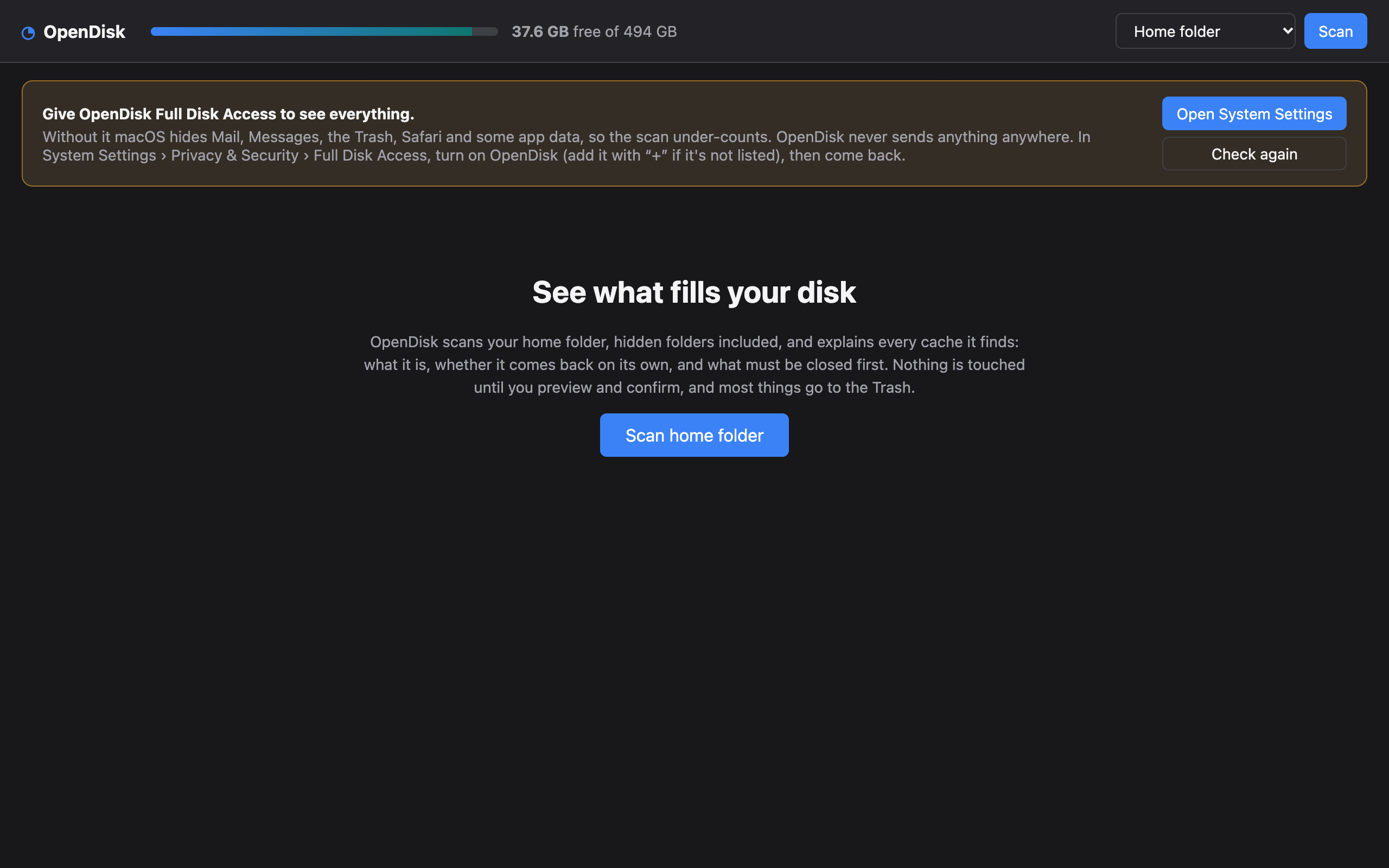
OpenDisk checks this when it starts by trying to read a protected file. If access is missing, it shows a banner:
Grant it
- Click Open System Settings in the banner. It opens Privacy & Security › Full Disk Access.
- Turn on OpenDisk. If it is not in the list, click +, choose Applications › OpenDisk and turn it on.
- Switch back to OpenDisk. The banner disappears on its own (or click Check again).
OpenDisk never sends anything anywhere: it has no network access and no telemetry. Full Disk Access only lets it see those folders. What it may clean is still limited by its rules and denylist, which never allow Mail, Messages, Photos libraries, iCloud Drive or keychains.
After updating OpenDisk
Until releases are signed with a Developer ID, macOS ties the permission to each build. If the banner comes back after an update, turn OpenDisk off and on again in the same settings pane.
Without the app
The command line tool runs inside your terminal, so it gets whatever access your terminal app has. To include protected folders, give Full Disk Access to Terminal (or iTerm, Warp…). opendisk fda shows the current state and opendisk fda --open opens the settings pane.