
Getting started
OpenDisk is a desktop app for macOS 11 or later (Apple silicon and Intel). Windows and Linux are planned.
Install
Download
OpenDisk_<version>_universal.dmgfrom the latest release. Builds of every commit are also available as theOpenDisk-macos-universalartifact of the CI workflow (you need to be signed in to GitHub).Open the
.dmgand drag OpenDisk to Applications.The first time, macOS says it cannot check the app for malicious software, because OpenDisk is not yet signed with an Apple Developer ID. Open it anyway:
- Control-click OpenDisk in Applications and choose Open, then Open again, or
- go to System Settings › Privacy & Security and click Open Anyway next to the OpenDisk message.
If you built it yourself or prefer the terminal:
xattr -dr com.apple.quarantine /Applications/OpenDisk.app.
First scan
- Give OpenDisk Full Disk Access when it asks. Without it macOS hides part of your data and the scan under-counts.
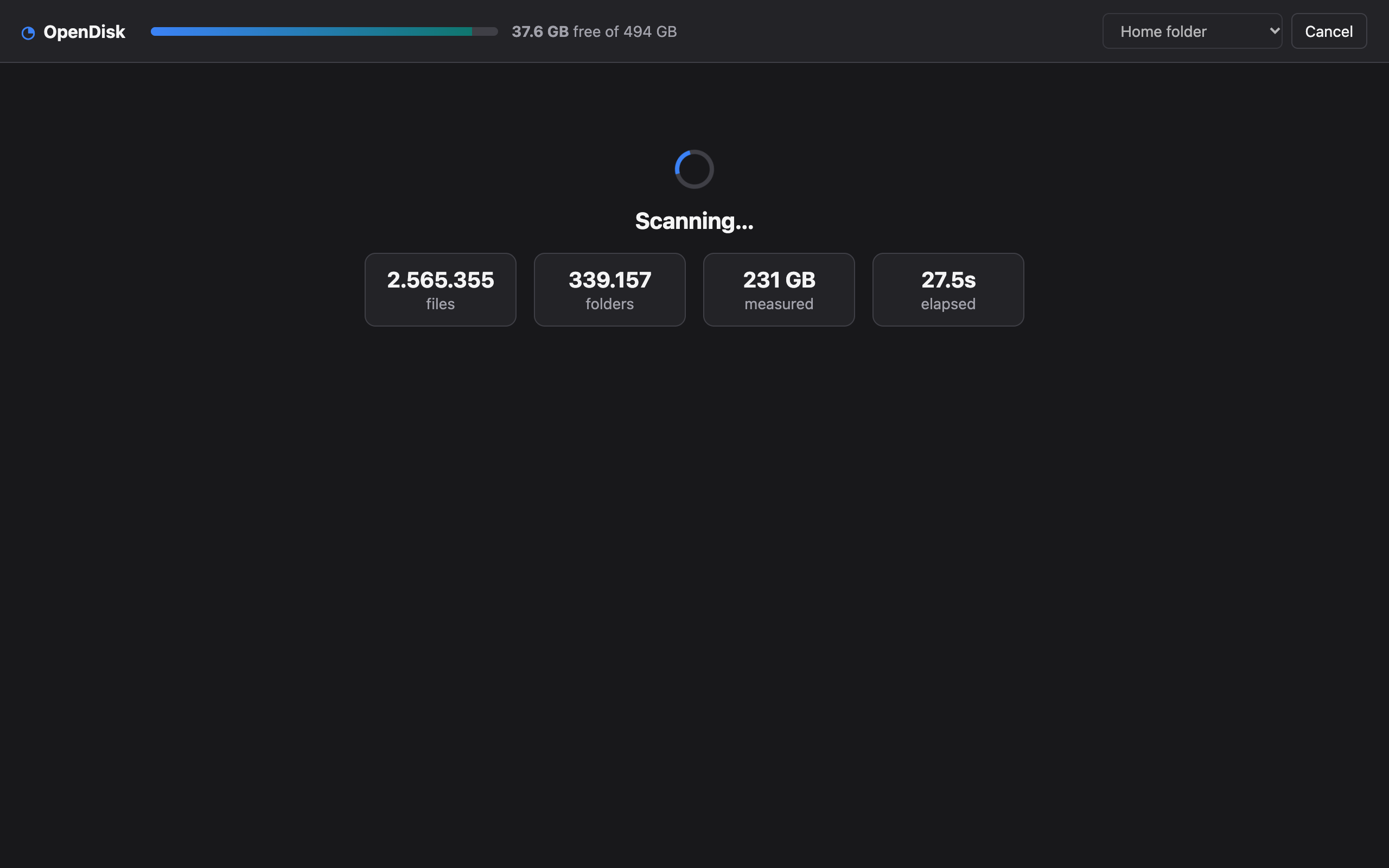
- Choose Home folder (or Whole data volume) and click Scan. A typical home folder with a few hundred GB takes under a minute.
- Look through the findings, select what you want to clean, and click Preview….
- Run a Dry run if you want to see what would happen without changing anything, then Clean.
Nothing is touched until you confirm the preview, and most things go to the Trash, where you can put them back.
Command line
The same engine is available as a command line tool for scripting and power users. See Command line.