
Export to your game
File menu → Export… (⌘E) opens the export sheet. On the left, profiles; on the right, the settings of the selected one. Changes save straight into the profile, so the next project exports the same way.
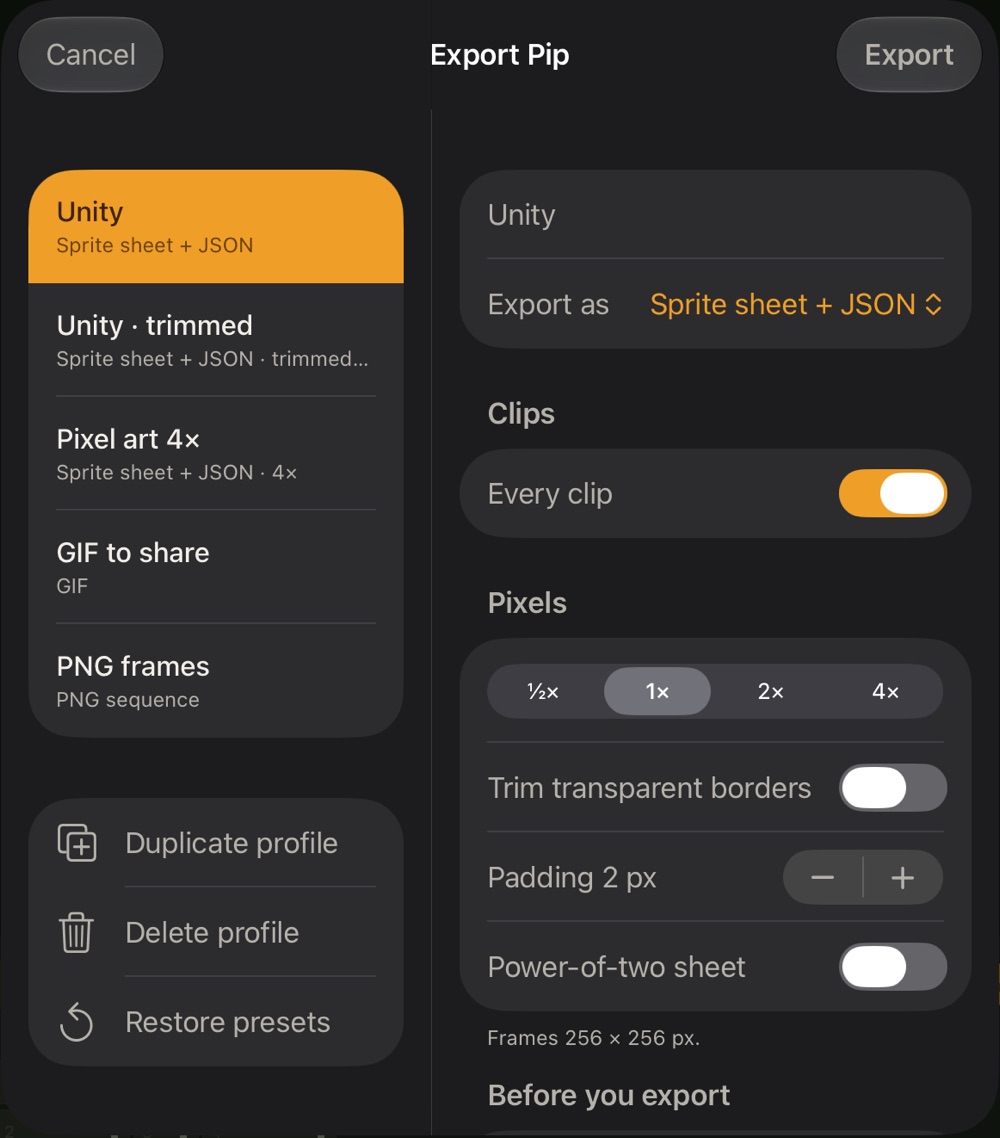
Profiles
Calco comes with:
| Profile | Exports |
|---|---|
| Unity | Sprite sheet + JSON, for the calco-unity importer. |
| Unity · trimmed | The same, trimmed and power-of-two. |
| Pixel art 4× | Sprite sheet at 4×, with no blurring. |
| GIF to share | One GIF per clip. |
| PNG frames | A folder per clip, one PNG per tick. |
| Godot | Sprite sheet + SpriteFrames .tres. |
Duplicate profile to make your own, Delete profile, or Restore presets. Export again (⇧⌘E) repeats the last export without opening the sheet.
Settings
- Export as: sprite sheet + JSON, GIF, PNG sequence or Godot SpriteFrames.
- Clips: every clip, or only some.
- Scale: ½×, 1×, 2× or 4×. Scaling up keeps pixels sharp.
- Trim transparent borders: each clip is trimmed to the box its drawings use; the pivot stays in place.
- Padding between frames, and Power-of-two sheet for older engines.
Before you export
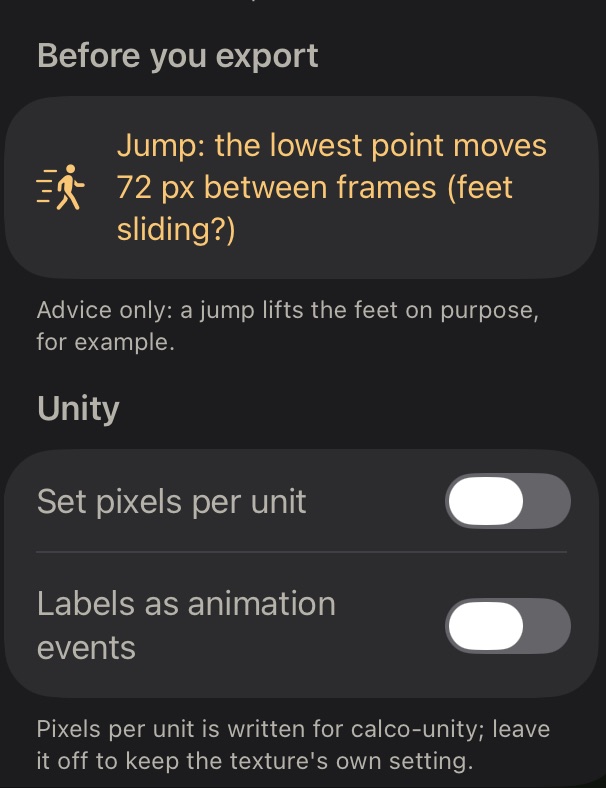
Calco checks the clips and lists anything worth a second look. These are advice only: a jump lifts the feet on purpose, for example.
- Empty frames in a clip that has drawings.
- Hidden layers with drawings (they won't be exported).
- Feet sliding: in clips with the pivot on the ground, the lowest point moves between frames.
- Loops whose last frame repeats the first, which makes the loop stutter.
Unity
Copy the calco-unity package into your Unity project and drop the exported PNG and JSON into Assets: it creates the sprites, an animation per clip and an Animator Controller.
- Set pixels per unit: writes the texture's pixels per unit.
- Labels as animation events: a drawing labelled step calls
OnCalcoLabel("step")on the GameObject when its frame plays. Add that method to a script on the same object.
Godot
The Godot profile writes the PNG and a SpriteFrames resource (.tres) with one animation per clip, holds as frame durations and the clip's fps as speed. Keep both files together; set the AnimatedSprite2D offset for the pivot.
Where exports go
To On My iPad › Calco › Exports › project › profile. After exporting, the share sheet lets you send them by AirDrop or to Files.