Clips and pivot
A project holds one character; each clip is one of its animations. In a game, each clip becomes its own animation: Idle, Walk, Jump, Attack…
Managing clips
Tap a clip's name in the timeline to switch. The … button next to the clips opens their menu:
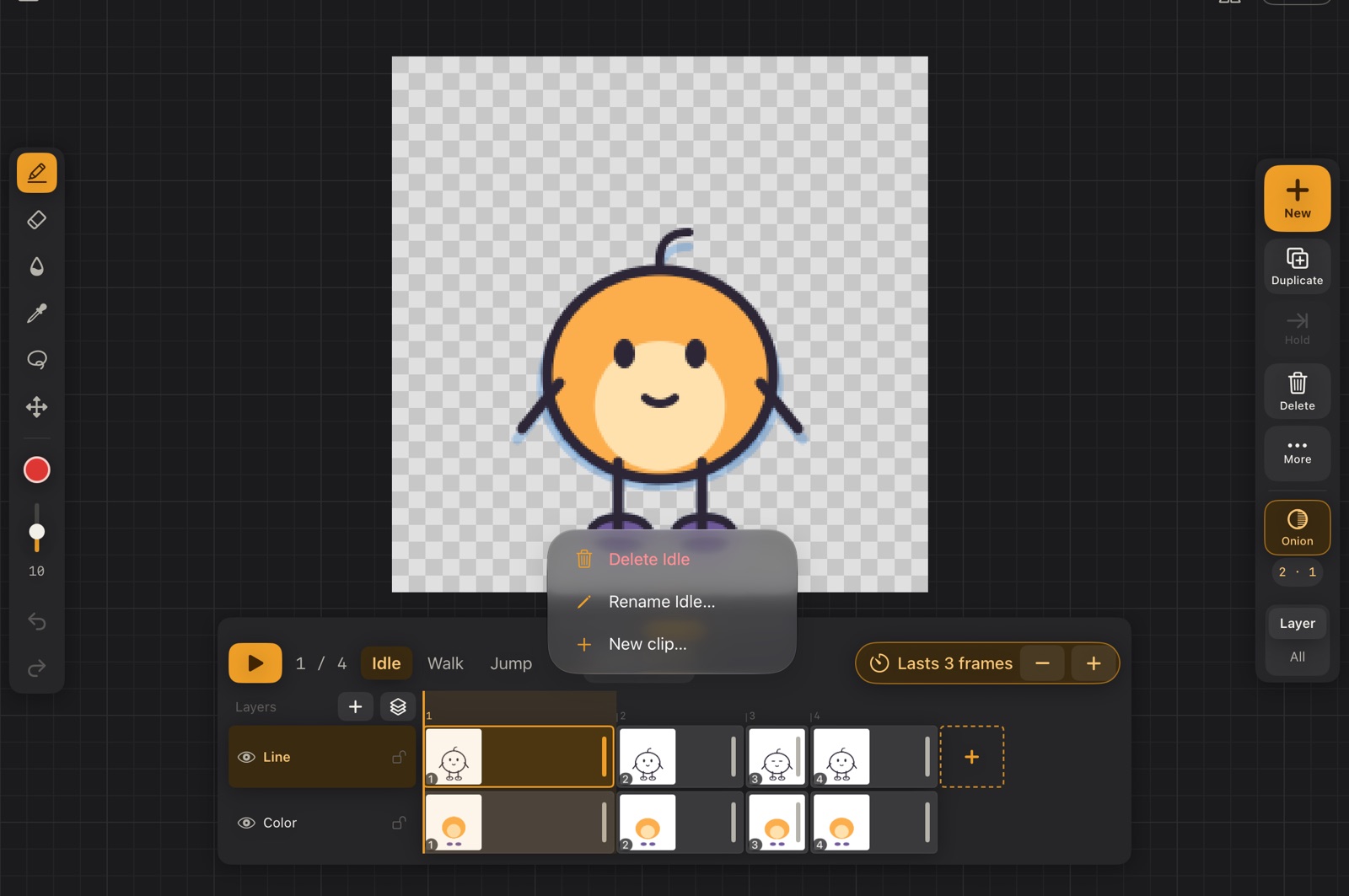
- New clip…: starts with one blank frame and the same layers as the current clip.
- Rename… and Delete.
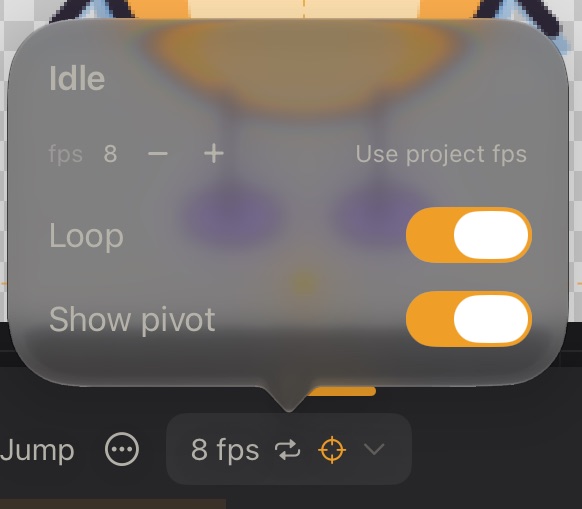
Each clip has its own fps and its own loop setting: a walk loops, a jump plays once. Both are in the 12 fps ⌄ button; Use project fps goes back to the project's speed.
Pivot
The pivot is the point the game uses to place the sprite, usually between the feet. Turn on Show pivot in 12 fps ⌄ to see it on the canvas, and drag it.
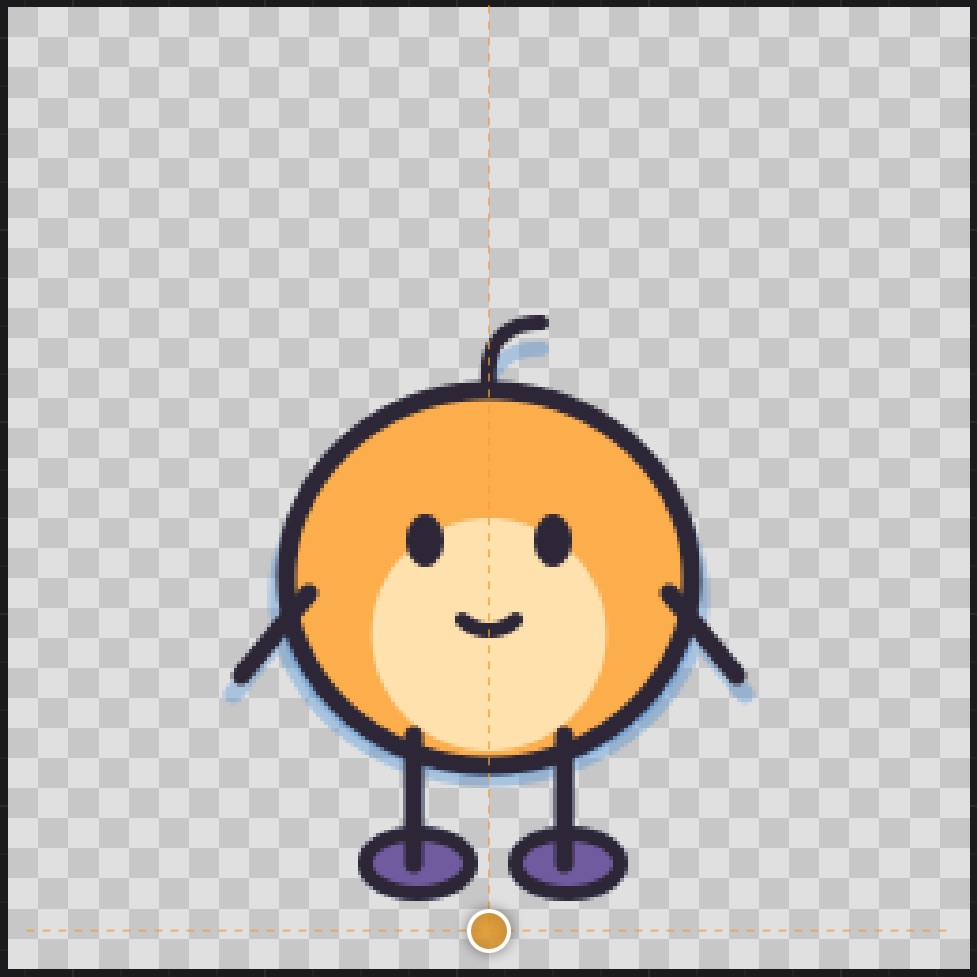
The pivot goes into the export: Unity's sprites keep it even when the frames are trimmed. Keep it on the ground for characters that walk, so Calco can warn you if the feet slide (see Before you export).