Gallery and projects
Calco opens on the gallery: every project on this iPad, with the last one ready to continue.
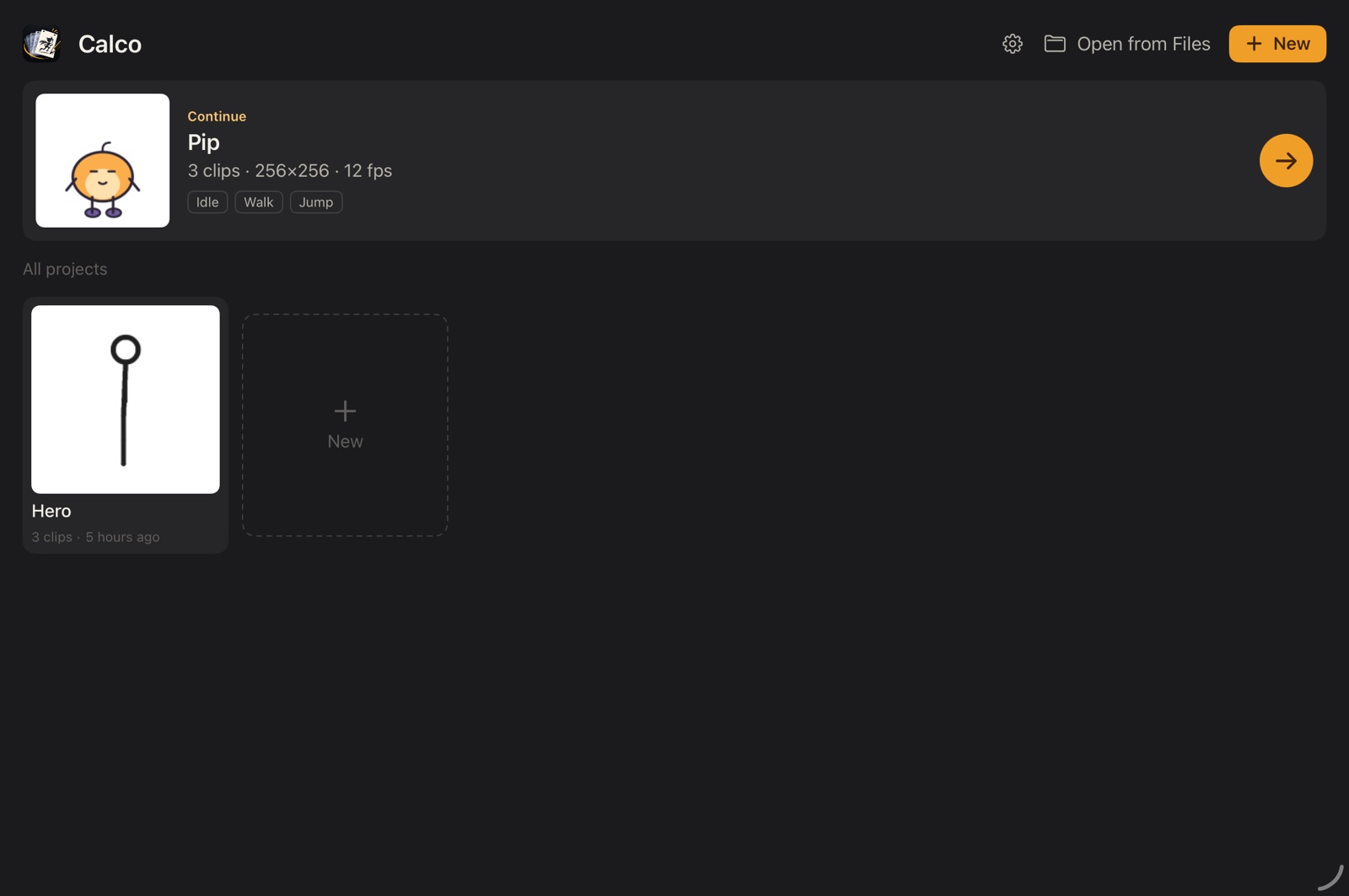
- Continue opens the project you were working on. Its card plays a clip: tap a clip's name to watch another one. It shows the sprite size, the speed and when you last edited it, with Export… and Duplicate at hand.
- All projects lists the rest, with their size and date. Tap ⋯ on a card (or long-press it) to open, rename, duplicate, export, move or delete it.
- Search finds a project by its name or by the name of one of its clips, and Sort orders them by Recent, Name or Size.
- The arrow into a tray opens a
.calcoproject from Files, iCloud Drive or AirDrop. You can also drop a.calcoon the New project card: Calco copies it in and opens it.
Folders
Put the projects of a game together: characters, enemies, effects…
- The New folder card, always first among the folders (or the folder with a + at the top), makes one. Each folder shows a peek at its projects. Likewise New project is always the first card among the projects, even when there are none yet.
- Drag a project onto a folder to put it there: the folder lights up while you hold it over. Inside a folder, drag a project onto All projects to take it out.
- Or use ⋯ › Move to on a project, which can also make a new folder and put the project in it.
- A folder's ⋯ renames or deletes it. Deleting a folder never deletes its projects: they go back to All projects.
- New projects, and
.calcofiles dropped in, go to the folder you're in. Search inside a folder looks only there.
Folders are ordinary folders in On My iPad › Calco, so the Files app shows the same thing.
- The gear opens Preferences.
New project
Tap New at the top, or the New project card, to choose how the character starts.
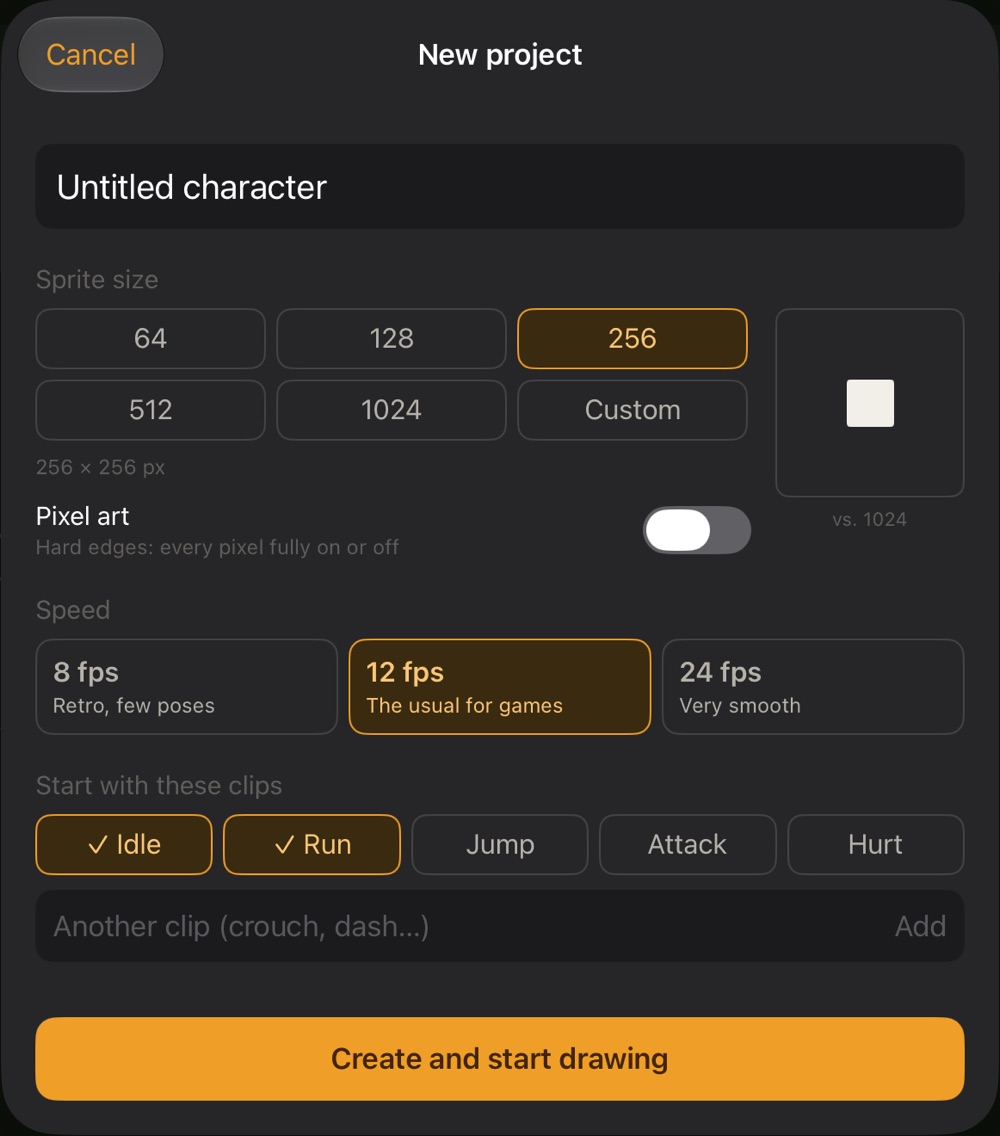
- Sprite size: the canvas in pixels, from 64 to 1024, or Custom to type the width and height (16 to 2048). The box on the right compares it with 1024.
- Pixel art: hard edges, every pixel fully on or off. You can change it later in the brush options.
- Speed: 8 fps for retro motion with few poses, 12 for most games, 24 for very smooth motion.
- Start with these clips: pick the animations you'll need, or type your own (crouch, dash…).
Each clip starts with one blank frame and two layers, Color and Line.
The file menu
The folder icon at the top left of the editor opens the file menu.
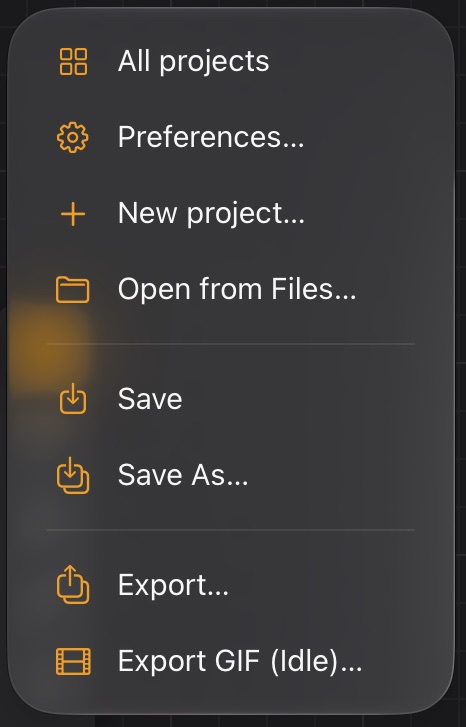
| Item | What it does |
|---|---|
| All projects | Back to the gallery (⇧⌘O). |
| Preferences… | App settings such as the language (⌘,). |
| New project… / Open from Files… | Same as in the gallery (⌘N / ⌘O). |
| Save / Save As… | Save now, or save a copy with a new name (⌘S / ⇧⌘S). |
| Canvas size… | Make the canvas bigger or smaller without scaling the drawing. See below. |
| Export… | Export with a profile (⌘E). See Export. |
| Export GIF | A quick GIF of the current clip (⌘G). |
Where files go
Projects are .calco packages in On My iPad › Calco. Exports go to On My iPad › Calco › Exports.
Canvas size
Halfway through, the sprite needs more room (a sword swing, a jump)? Canvas size… adds space around the drawing, or cuts it, without scaling anything.
- Type the width and height, or tap +25 %, +50 %, × 2, or Fit to drawing (the smallest canvas that holds every frame).
- Where the drawing stays: nine squares. With the left one, the new room goes on the right; with the bottom one, on top, so the feet stay put.
- The preview shows the new canvas (dashed) with the drawing in it.
It changes every clip, frame and layer at once, so the sprite sheet stays even. Strokes and shapes stay sharp and editable, and each clip's pivot stays on the same pixel, so the character doesn't jump in the game. Made smaller, what falls outside is cut; Undo brings it all back.