Timeline and drawings
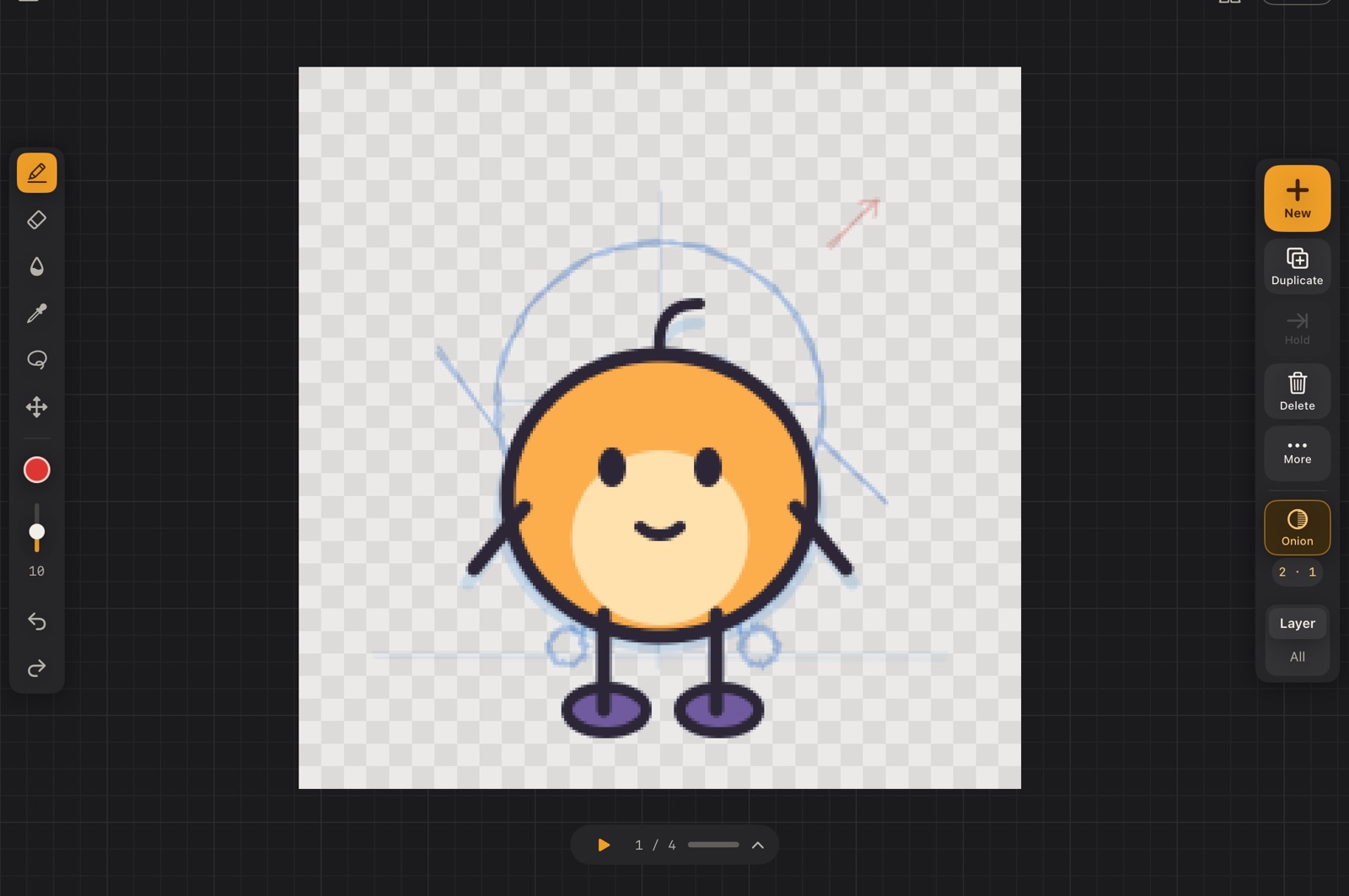
Animating happens in two places: the animation rail on the right of the canvas, with what you do to drawings, and the timeline at the bottom, with the clips, the layers and their drawings.
The animation rail

From top to bottom:
| Button | What it does |
|---|---|
| + New | A new blank drawing after the playhead, on the current layer (⌥N). The other layers keep showing what they had. The button you'll press most. |
| Duplicate | Copies the drawing into a new frame after it (⌘D). |
| Hold | This layer keeps showing the drawing before. On a held cell it becomes Own drawing (new, or a copy), and on a linked repeat it becomes Unlink. |
| Delete | Deletes the drawing (⌫). The one before keeps showing; a frame left with nothing of its own goes away. |
| More | Label the drawing, split it halfway, repeat drawings, tween a motion, and the actions for the whole frame. |
| Onion | The onion skin on or off; the numbers under it open its settings. |
| Layer / All | What the buttons act on: the current layer's drawing, or whole frames, every layer at once. |
With All, New adds a whole frame, Duplicate copies the frame and Delete removes it.
The More menu
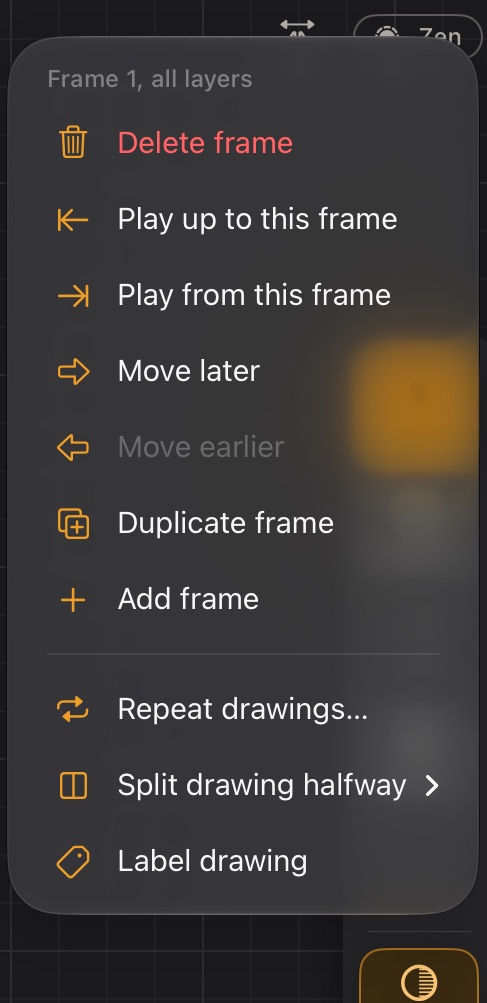
Under Frame N, all layers: add, duplicate, move earlier or later, set the playback range (play from or up to this frame, or the whole clip again) and delete the frame.
In portrait
Turn the iPad upright and the animation rail lies down between the canvas and the timeline, with + New drawing as a wide button on the right.
The timeline
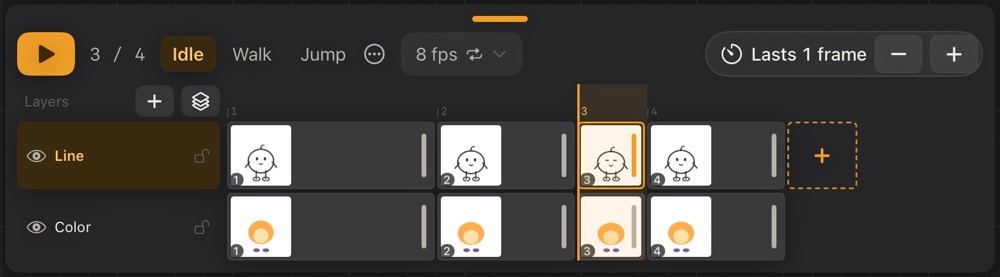
Top row
- ▶ plays the clip (Space). The counter shows frame / total.
- Clips (Idle, Walk, Jump): tap to switch. The … button has more; see Clips and pivot.
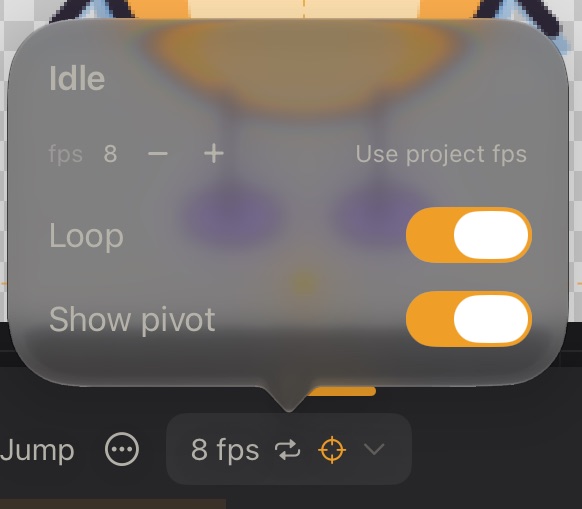
- 12 fps ⌄ opens the clip's settings: its speed, Loop and Show pivot. The icons next to the fps tell you the clip loops and the pivot is showing.
- Lasts N frames − + sets how long the frame at the playhead stays on screen. It lights up orange when it lasts more than one (⌥= / ⌥−).
Layers
Over the layer names, + adds a layer and the stack icon opens the layers panel; see Layers.
Frame numbers
The frame numbers run above the cells:
- Tap a number to go to that frame.
- Drag along the numbers, with a finger or the Pencil, to flip the frames by under it, as fast or as slow as you move, with a light haptic tap on each. You see the motion at your own pace, without playing. The timeline holds still while you drag.
- Hold a number and drag to move the frame, all its layers with it.
- To pick several frames: More → Select frames (starts at the playhead), Select frames from here when you long-press a cell, or tap a number twice. Then tap another number, or drag along the numbers, to stretch the range up to there.
Several frames at once
With frames picked, a bar under the canvas acts on all of them: Copy, Cut, Paste (after the playhead, each frame with its length), Reverse (play them backwards, for the way back of a cycle), Duplicate (right after them) and Delete. The range starts on the current layer (with Layer on the animation rail) or on every layer (with All). While there's a range, tap a layer's name to add or remove it: it gets a ✓ and the outline marks its rows. So you can copy, say, the legs and the shadow without the rest. With every layer in, it acts on whole frames. Pasting puts each layer back into itself; a single layer goes into the current one. Each is one undo; ✕ lets go of the range (while there's one, tapping a number stretches it instead of going there). On a keyboard: ⌘C, ⌘X, ⌘V and ⌘⌫.
Cells
Each layer row is a strip of cells. A cell is one drawing, and its width is how long it lasts.
- Tap a cell to go there and draw on that layer.
- Each cell shows a preview of its drawing, with its number (or label) in the corner.
- A dashed cell has nothing drawn yet.
- An arrow → means the drawing keeps showing in the following frames (a hold).
- A label (for example step) replaces the number when the drawing has one.
- A link icon means a linked repeat.
- The dashed + cell after the current layer's last drawing adds one more at the end.
- After it, the sheet goes on with empty slots and faint numbers: tap one to draw there, on that layer. The frames in between are added, each layer holding its last drawing.
Drag a cell's right edge with the Pencil or a finger to make that drawing last longer or shorter. What comes after moves along: lengthening a drawing pushes the next one instead of covering it.
Long-press a cell for its menu:
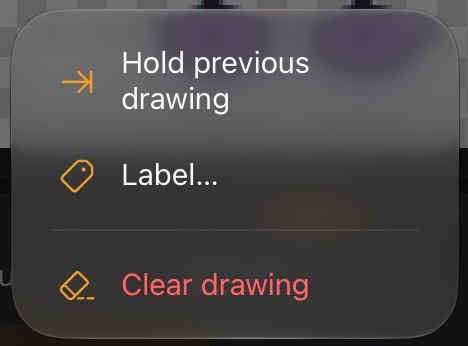
- Hold previous drawing: this layer keeps showing the drawing before.
- New drawing here / Copy drawing here: give a held cell its own drawing, blank or as a copy.
- Label…: a name shown in the cell (contact, passing…). Labels can become Unity animation events.
- Clear drawing.
Make it taller
Drag the grip at the top of the timeline (the short bar in the middle) upwards to make room for more layers: the rows grow and the canvas gets smaller. Calco remembers the height. Double-tap the grip to go back to the automatic height.
Keep pushing the grip down past the smallest height and the timeline hides: the canvas gets the whole height, the rails sit centred beside it, and a slim bar with play and the frame counter stays at the bottom. Tap it, or drag it up, to bring the timeline back. Both ways it slides, and the drawing glides to its new place.