Getting started
OpenPixel is an open source pixel art and animation editor for iPad, built for the Apple Pencil. It pairs the clean interface of Pixaki with the working model of Aseprite: a sprite has layers and frames, and the image where a layer and a frame meet is a cel.
What you see
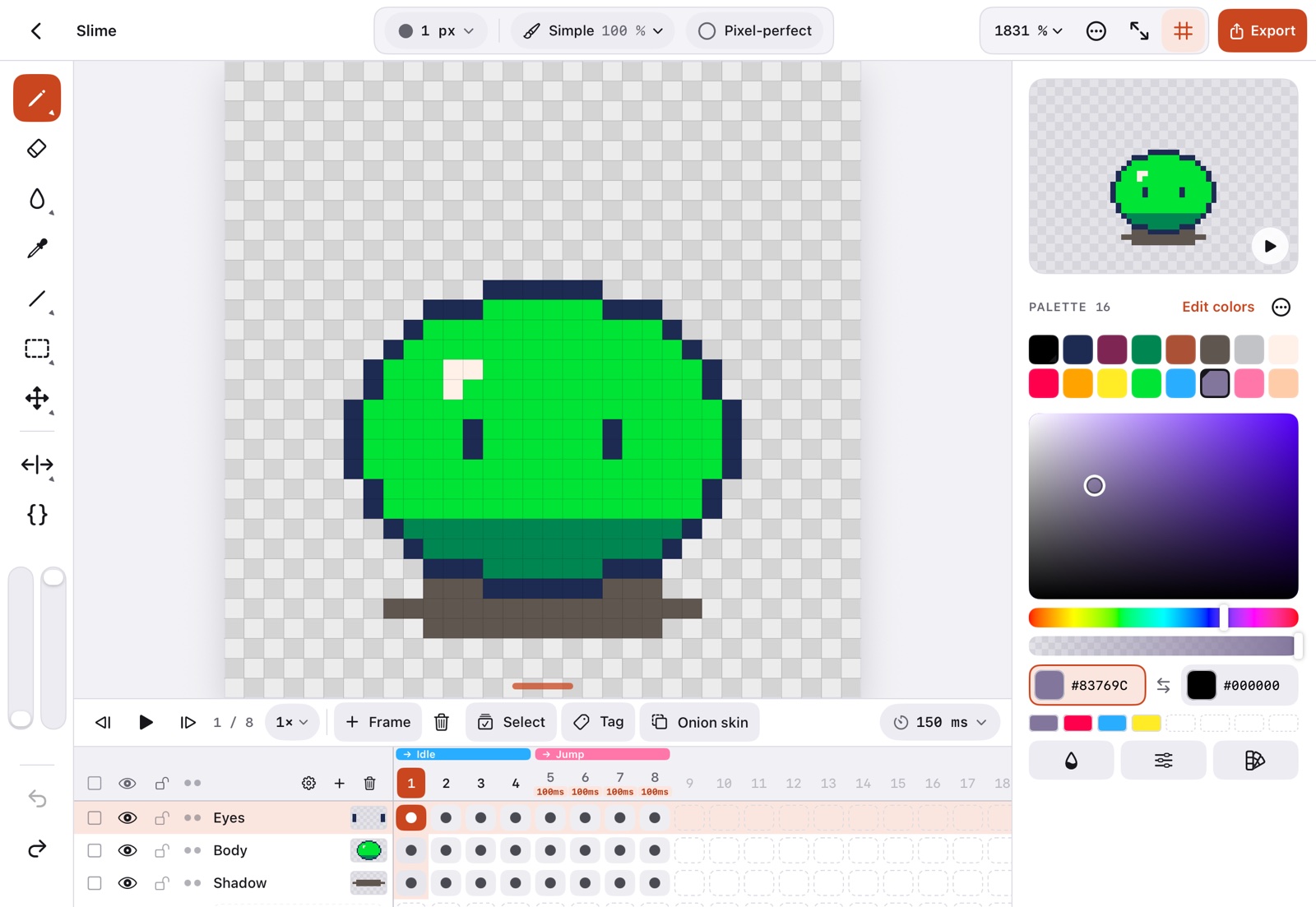
| Area | What it does |
|---|---|
| Top bar | Back to the gallery and the sprite's name (tap it to rename), the active tool's options in the middle, and on the right undo and redo, the zoom (400 % ⌄), the grid and the Edit menu (…) in one group, then Export. |
| Tool rail (left) | Drawing tools, selection, move, symmetry and scripts, with the brush size and opacity sliders at the bottom. See Drawing tools. |
| Canvas (centre) | Where you draw. Pinch to zoom, drag with two fingers to pan. The focus mode button sits in its bottom-right corner. Short notices at its top confirm actions such as copy, cut, paste, duplicate or delete, and warn when a layer is hidden or locked. |
| Side panel (right) | The animated preview, the palette (or a tilemap's tileset), the color selector, recent colors and color actions. See Color and palettes. |
| Timeline (bottom) | Playback, frames, tags and layers. See Layers and Frames and animation. |
Your first sprite in five steps
- In the gallery, tap New sprite, pick a size (16 to 256, or custom up to 1024 px), a background and a starting palette, and tap Create. See Gallery and projects.
- Draw with the Apple Pencil. Touch and hold the canvas with a finger to pick a color, or tap one in the palette.
- Tap + Frame in the timeline to copy the frame and draw the next pose. Turn on Onion skin to see the frames around it.
- Tap ▶ to play, or watch the preview in the side panel while you draw.
- Tap Export and choose PNG, GIF, sprite sheet or Aseprite. See Export.
Everything saves on its own
Sprites are saved automatically, in the background, to Documents/Sprites (visible in the Files app) as readable .openpixel files.
A quick vocabulary
- Sprite: one drawing or animation, with its size and palette.
- Layer: a sheet stacked on the others, like an outline over its colors.
- Frame: one step of the animation, with its own duration in milliseconds.
- Cel: what one layer shows in one frame.
- Tag: a named range of frames (Idle, Run…) that plays on its own.