Scripts and extensions
OpenPixel runs Aseprite's Lua scripts and extensions, so much of what the Aseprite community has made works on the iPad too.
Running a script
Tap { } in the tool rail (or Edit › Scripts):
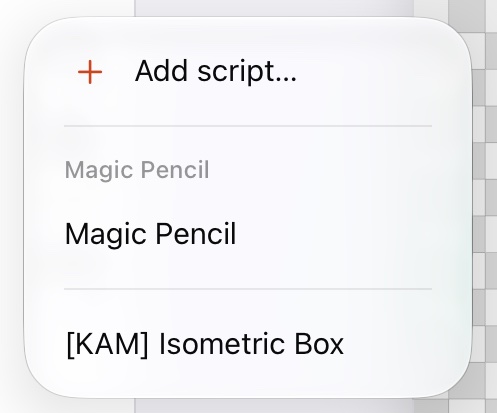
- Add script… brings a
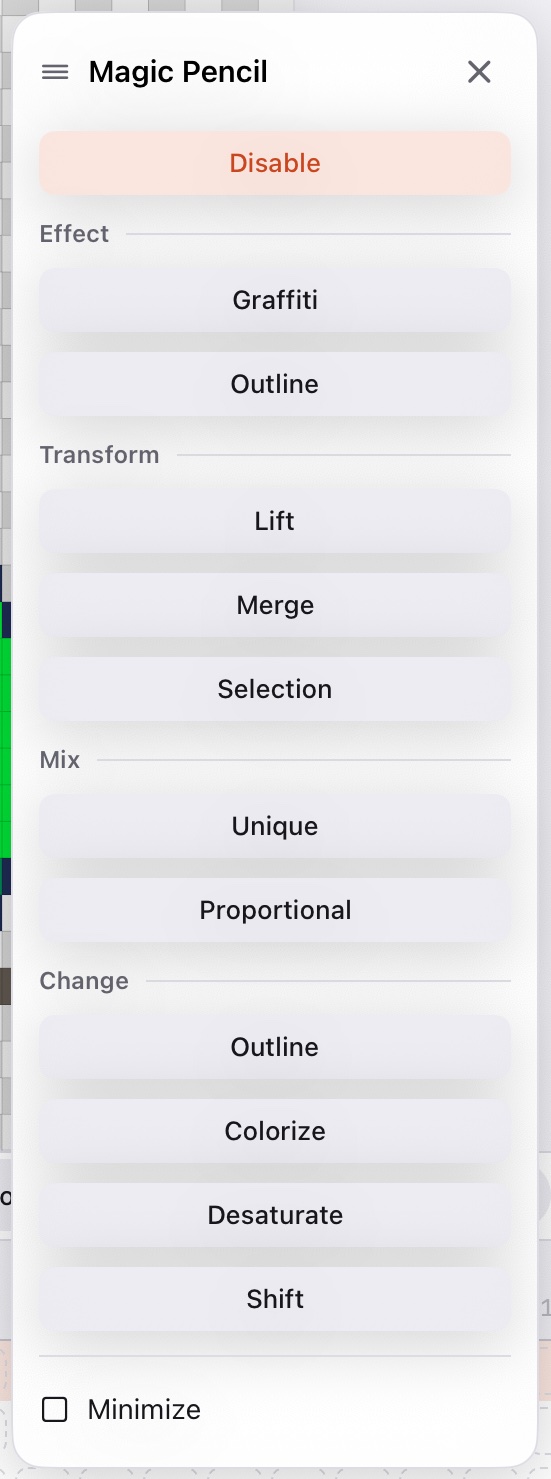
.luafile from the Files app. It stays in the list. - Tap a script to run it. Commands added by extensions are listed under the extension's name.
- If the script shows a dialog, it opens as a floating window you can drag; its first button is the main action.
- Each run is one undo step.
Scripts see a subset of Aseprite's API (Lua 5.4): app, Sprite, Layer, Cel, Frame, Image, Color, Palette, Selection, Point, Size, Rectangle, Dialog, events and timers. Pixel scripts like Isometric Box run as they are. A script that needs a part of the API OpenPixel lacks stops and names it.
Safe by design
Scripts can't read or write files (except other scripts in their own folder) or reach the network, and a script that runs for more than 10 seconds is stopped.
Extensions
An .aseprite-extension package can add:
- palettes, listed in the palette's … menu;
- dithering matrices, for the gradient tool;
- scripts and the commands they add (
plugin:newCommand), in the scripts menu.
Install them from Preferences › Extensions, or open the file from the Files app. Plugins can listen to events, use timers, selections and their own preferences, so extensions like Magic Pencil work: what they change after a stroke joins that stroke's undo step. Themes, languages and key maps are Aseprite's own and are left out.
Manage your scripts in Preferences › Scripts.