Gallery and projects
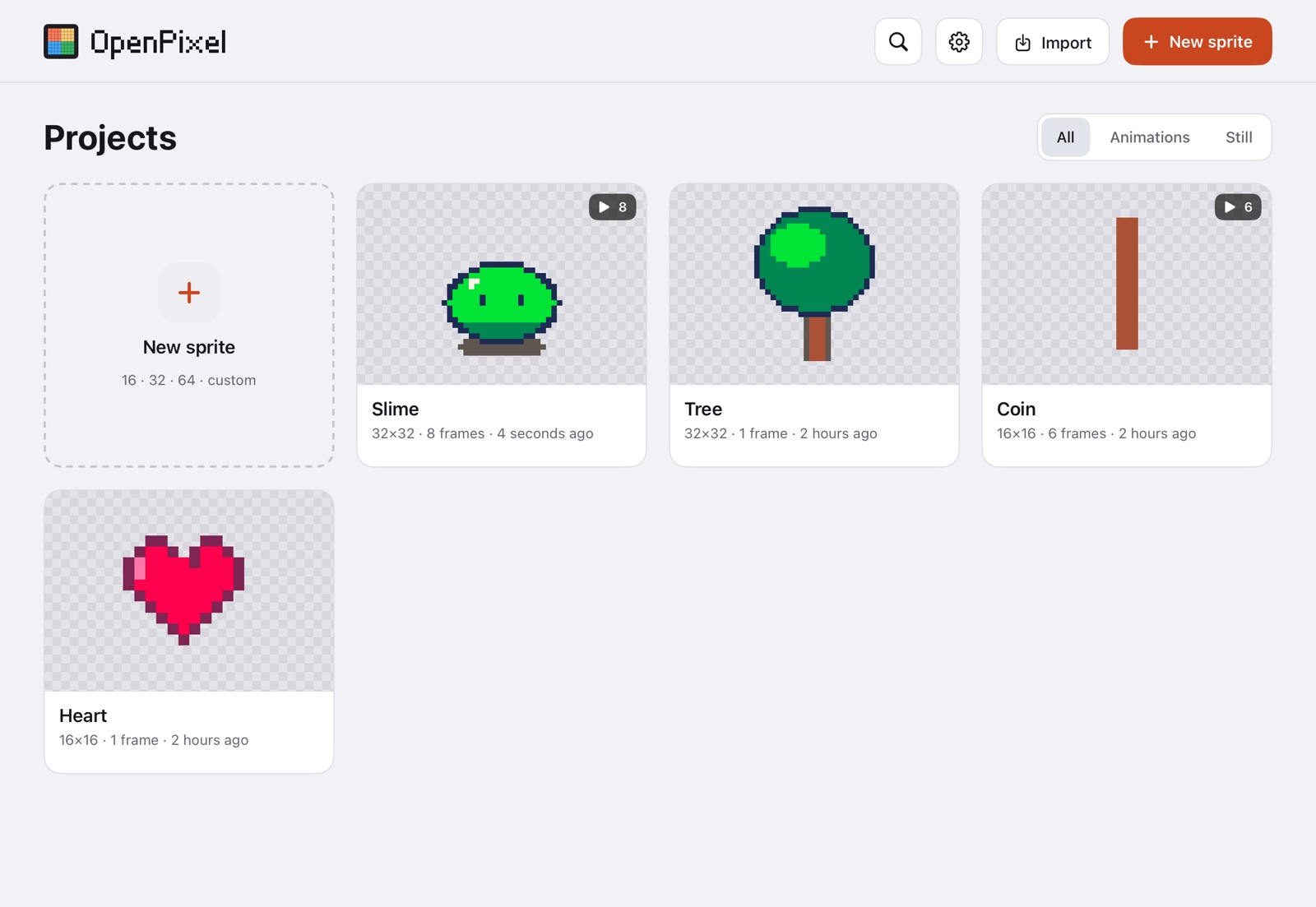
The gallery is the first screen: every sprite you have, with a thumbnail. Animated sprites play in a loop (unless Reduce Motion is on), and a ▶ N badge tells you how many frames they have.
Finding a sprite
- Search (magnifying glass) filters by name.
- All / Animations / Still shows every sprite, only the animated ones, or only single images.
- Touch and hold a sprite to rename, duplicate, export or delete it. Export opens the same export window as the editor, without opening the sprite.
Folders
Keep projects together in folders, and folders inside folders:
- Tap the folder button at the top to make an empty one where you are, or touch and hold a project and choose Move to folder › New folder….
- Put a project or a folder in another folder by dragging it onto it, or with Move to folder (nested folders show their path, like Characters › Dummy). To take something up a level, drag it onto the back button at the top left (‹ Projects or the name of the folder above) or choose Remove from folder. A folder can't go inside itself.
- Tap a folder to open it. Its card shows four projects from inside it (inner folders included) and how many projects and folders it holds. New sprites and imports made in a folder go in it, and duplicates stay with the original.
- Everything can be ordered, on the home screen and in every folder, projects and folders mixed. Drag a card onto the left or right side of another to put it before or after it (a bar between the cards shows where), or onto the middle of a folder to put it inside (the folder lights up). The order stays as you leave it; new projects and folders, and ones just moved in, come first. Until you reorder a place, it shows folders first, then the most recent projects.
- Touch and hold a folder to rename, move or delete it. Deleting a folder keeps what's in it: its projects and folders move up a level.
- Copy and paste: touch and hold a project or a folder and choose Copy, go where you want it and tap the paste button at the top (⌘V), or touch and hold a folder and choose Paste into folder. A folder is copied with everything inside it, in its order. A copy next to its original gets (copy) added to its name. What you copied stays ready to paste again.
- Search looks in every folder.
A new sprite
Tap New sprite (top right) or the dashed card.
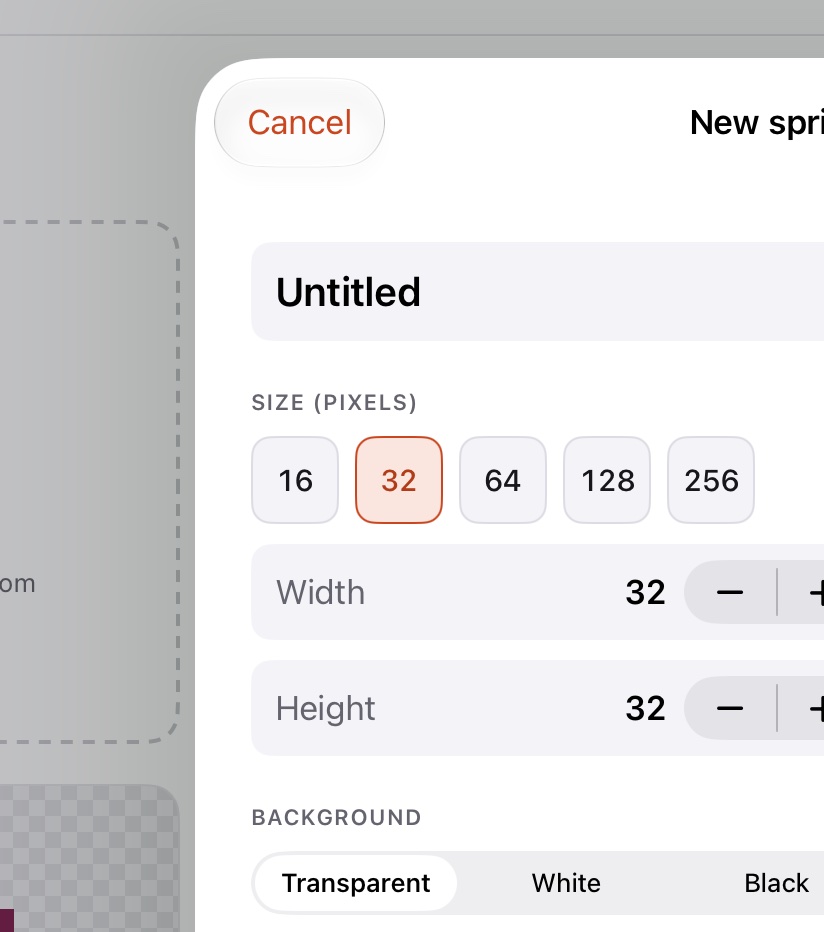
- Size: 16, 32, 64, 128 or 256 px, or set width and height up to 1024 px.
- Background: transparent, white or black.
- Starting palette: DawnBringer 32, PICO-8, Sweetie 16, Endesga 32 and more, or Empty to build your own. You can change it later.
The preview on the right shows what you'll get. Tap Create to open the editor.
Importing
Import brings in a file from the Files app:
| File | What you get |
|---|---|
.aseprite / .ase | The whole sprite: layers, frames, tags and palette. |
| Animated GIF or PNG | One layer with a frame per frame of the image, keeping each frame's duration. |
| PNG, JPEG | A one-frame sprite (up to 512 × 512 px). |
To bring an image or GIF into a sprite that's already open, use the timeline's layer menu instead: see Layers.
Where sprites are kept
Sprites save on their own, in the background, to On My iPad › OpenPixel › Sprites as .openpixel files (plain JSON you can read without the app).