Layers
Layers are listed on the left of the timeline, the top one in front. Tap a layer to make it active; its row is tinted with the accent color.
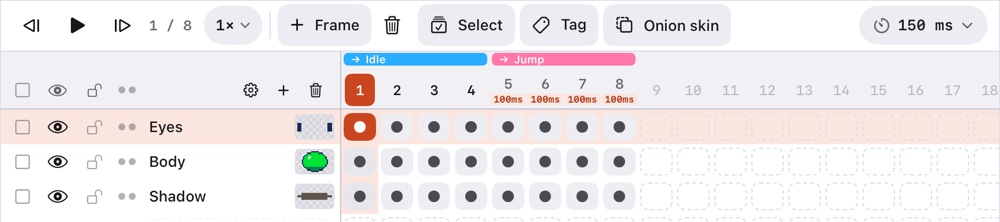
Each row has an eye (show or hide, ⇧X), a lock and the continuity dots (see linked cels). The same three icons in the header act on every layer at once. Above the list:
- ⚙ chooses whether the first frame is numbered 0 or 1;
- + adds a layer above the active one (⇧N); touch and hold it for more (below);
- the bin deletes the active layer;
- drag a layer to reorder it (or use Move up and Move down in its menu). A dashed line between the rows shows where it will land, shorter, starting at the group's guide line, when that's inside a group; drop it on a group's row to put it inside.
The layer menu
Touch and hold a layer's name:
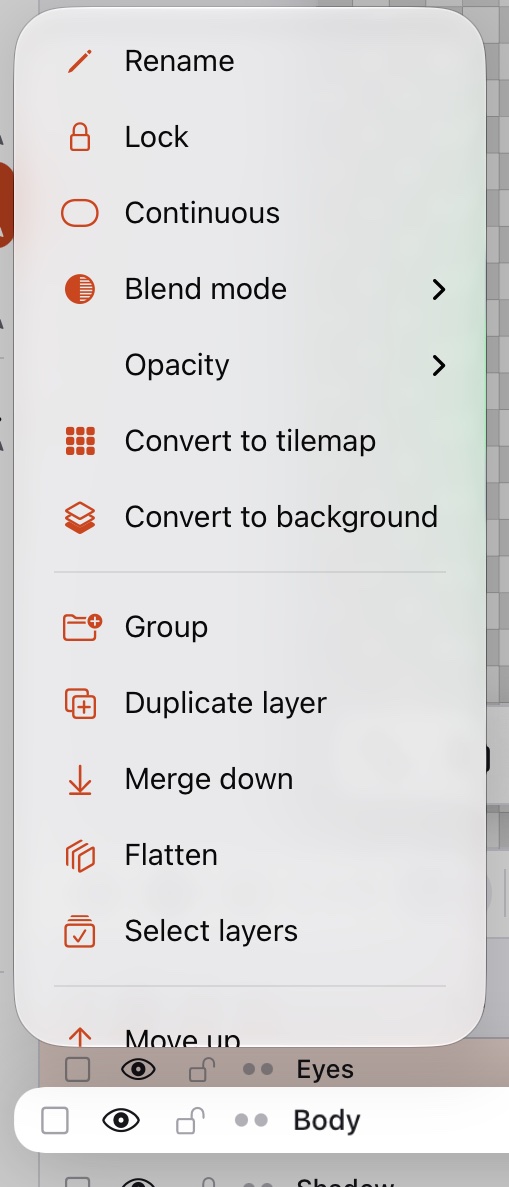
| Item | What it does |
|---|---|
| Rename | Also with a double tap on the name. |
| Lock | Locked layers can't be painted on or moved. |
| Continuous | New frames link this layer's cel instead of copying it. |
| Blend mode | Normal, multiply, screen, overlay, darken, lighten, color dodge and burn, hard and soft light, difference, exclusion, addition, subtract and divide. |
| Opacity | The whole layer's opacity. |
| Convert to tilemap | See Tilemaps. |
| Convert to background | See below. |
| Group | Puts the layer in a new group. |
| Duplicate layer | A copy with all its cels. |
| Merge down | Joins it with the layer below, keeping the look (blend mode and opacity). |
| Flatten | Merges every visible layer into one. |
| Select layers | Starts a timeline selection with this layer. |
| Move up / down, into a group / out of it | Reorders it. |
The background layer
As in Aseprite, a background layer is opaque, underlined in the list and always at the bottom. Erasing or clearing on it leaves the secondary color instead of transparency. Convert a layer to the background and back from its menu.
Groups
Group a layer from its menu, several from a timeline selection, or tap the folder button above the layers: it groups the checked layers or, with none checked, adds an empty group above the active layer. Drag layers onto a group's row to put them inside, or between its layers to place them there. A group lines up with the layers beside it, and the layers inside it move to the right, with a line on their left. Groups fold with the chevron before their name. Their visibility, lock and opacity apply to everything inside, and moving, duplicating or deleting a group takes its layers along. A new layer added while a group is active goes inside it. With a group active, the Move tool (and Transform) moves every visible, unlocked layer inside it together, in the current frame. Copy group and Cut group in its menu take it with every layer inside; Paste layers above puts it back, in this sprite or another one. Copy and cut on the canvas, with a group active, take the pixels of all its layers.
New layers from the + menu
Touch and hold the + above the layers:
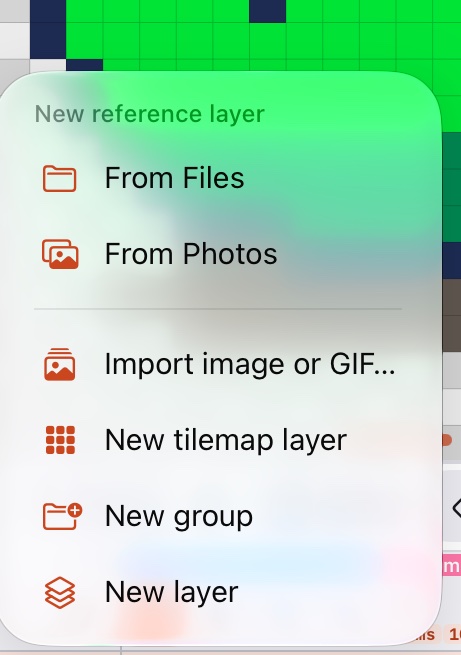
- New layer and New group.
- New tilemap layer: see Tilemaps.
- Import image or GIF…: see below.
- New reference layer from Files or Photos: see below.
From the Edit menu, New layer from selection (⌘J) copies the selected pixels to a new layer, and Cut to new layer (⇧⌘J) moves them.
Importing an image or GIF
Import image or GIF… brings a file from the Files app in as a new layer of pixels, above the active one and named after the file:
- each frame of a GIF goes to one frame of the timeline, starting at the active frame;
- if the GIF has more frames than the sprite, the missing ones are added with the GIF's durations (frames that already exist keep theirs);
- an image of another size is centered and cropped;
- a PNG or JPEG fills just the active frame;
- it's all one undo step.
Reference layers
A reference layer holds a photo or image to trace over, as in Aseprite. The image keeps its own resolution (it isn't turned into pixels; photos are stored at up to 2048 px), starts at 50 % opacity under the drawing, can't be painted on and isn't exported. Move it with the Move tool; fit, fill, enlarge or shrink it from its menu.