Color and palettes
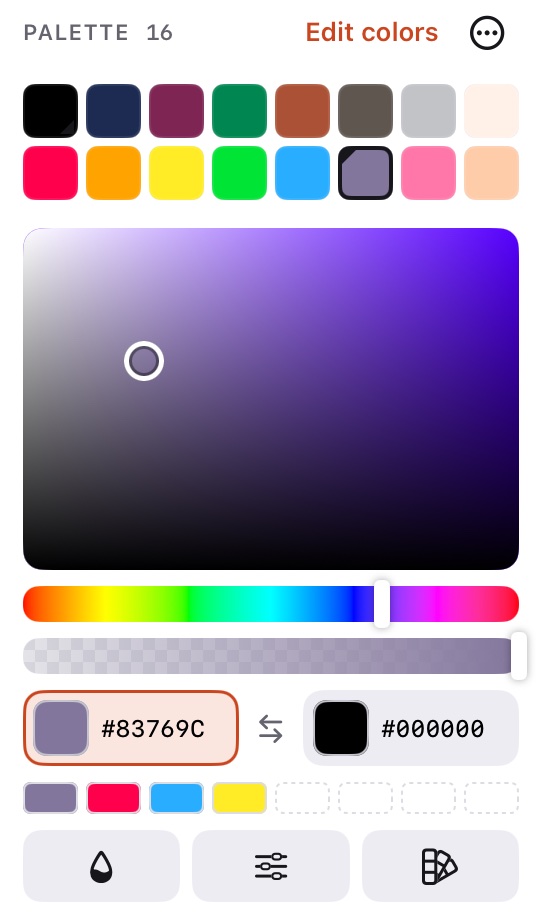
Color lives in the side panel, as in Aseprite: the palette at the top, the color selector below it and the color actions under that.
Primary and secondary colors
You always have two colors. The primary paints; the secondary is what the eraser leaves on a background layer, the end of a gradient and the text outline.
The two chips under the selector show them with their hex value:
- The chip with the accent border is the one the square and bars edit. Tap the other chip to edit it instead.
- The hex values are read-only: change the colors with the square, the palette or the eyedropper.
- A ! badge on a swatch means that color isn't in the palette. Tap it to add it.
- ⇄ between the chips (or X) swaps the two colors. The Apple Pencil Pro squeeze does the same.
Recent colors
The row right under the palette's title keeps the last 8 colors you painted with, newest first. Tap one to use it again: it goes to the color the square is editing. Handy for colors that aren't in the palette.
The color selector
Always on, under the palette:
- the square sets saturation (left to right) and brightness (bottom to top);
- the hue bar picks the hue;
- the opacity bar sets the transparency.
Drag and the pencil already paints with the new color. Picking a color from the palette or with the eyedropper moves the handles to it, so it's easy to find a slightly lighter or darker shade.
The color editor
Tapping a palette color in Edit colors mode, then editing it, opens the full editor: a spectrum, RGB and HSB sliders, the hex value, opacity, shades of the current color and harmonies (complementary, analogous, triadic, split complementary, tetradic). The left half of the swatch at the top is the color you started with: tap it to go back.
The palette
Tap a color to make it the primary. The primary and secondary colors are marked on the palette.
The + after the last color adds the primary color, so you can build a palette by hand: pick a color in the square, tap +, and so on. To start from nothing, choose Empty as the starting palette of a new sprite, or New empty palette in the … menu.
- Edit colors turns on palette editing: select a run of colors to edit one, make a gradient between the ends, reverse, sort (by hue, saturation, brightness or luminance), duplicate, delete, or drag to reorder. Everything can be undone.
- The … menu loads a preset (DawnBringer 32, PICO-8, Sweetie 16, Endesga 32, DawnBringer 16, Game Boy, grays…), makes a palette from the sprite's colors, imports one (
.gpl,.hex,.pal,.txt,.png,.gif), exports it (.gpl,.hex) or sets the default palette for new sprites. Palettes from installed extensions are listed there too. - Your palettes: an imported palette is kept under My palettes in Load preset, with the name the file gives it (or the file's name). Save palette as… keeps the current palette there under a name of yours; saving again with the same name replaces it. Delete saved palette removes one. They are available in every sprite.
- Palettes of up to 100 colors fit without scrolling; bigger ones scroll inside the panel.
Color actions
The three icons under the preview, plus the outline:
| Button | What it does |
|---|---|
| Replace color… (⇧R) | Replaces one color with another, with a tolerance, in the current cel or every cel, and only inside the selection if there is one. A floating window like Hue/Saturation's that stays open after Replace; Color shading, Hue/Saturation and Replace color take turns, so opening one closes the others, and its button closes it again. |
| Hue/Saturation | A floating window to shift hue, saturation, lightness (or value) and alpha, or the R, G, B and A channels, in the current cel or every cel, previewed live. Apply keeps it, Cancel goes back. The canvas can still be moved and zoomed while it's open, but not painted. |
| Outline… (the ◉ button in the tool bar, or the ⋯ menu) | Draws a 1 px line in the primary or secondary color around what's drawn (Outside) or over its own edge (Inside). The shape sets which neighbours count: circle for round corners, square for sharp ones, horizontal or vertical, or pick them one by one in the 3×3 grid. Background chooses what counts as empty, and Tiled wraps around the edges. It works on the selection if there is one, on the current cel or the cels picked in the timeline, or on every cel, previewed live. |
| Color shading | A floating window with a ramp of shades of the primary color; Lightness, saturation and hue shows three more ramps. Tap a shade to paint with it; touch and hold it to use it as the secondary color or add it to the palette. |
Only one of the two windows is open at a time: opening one closes the other.