Export
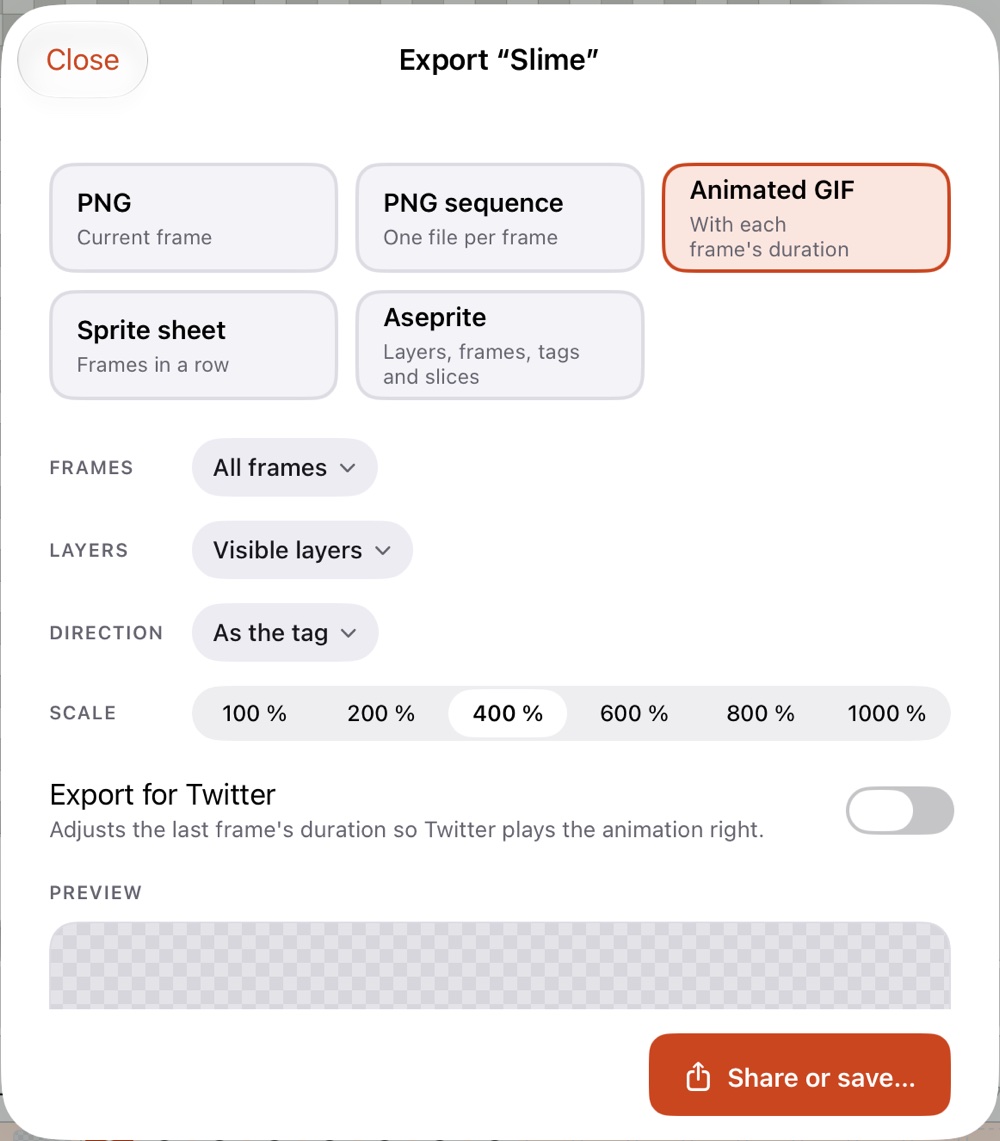
Tap Export (⇧⌘E) at the top right, or touch and hold a project in the gallery and choose Export. Choose a format, its options, check the preview and tap Share or save… to send the file through the iOS share sheet (Files, AirDrop, Mail…).
Formats
| Format | What you get |
|---|---|
| PNG | The current frame. |
| PNG sequence | One file per frame. |
| Animated GIF | The animation, with each frame's duration. |
| Sprite sheet | Every frame in a row, in one PNG, optionally with JSON data. |
| Aseprite | An .aseprite file with layers, frames, tags and slices, to keep working on a computer. |
| Slices | One PNG per slice (when the sprite has slices). |
Options
- Frames: all frames, the current frame, one tag, or a range.
- Layers: the visible layers, or one layer.
- Direction (GIF and PNG sequence): as the tag says, or forward, reverse or ping-pong, with the tag's repeat count.
- Scale: 100 % to 1000 %, with nearest-neighbor scaling, so pixels stay sharp. Sprites with a pixel ratio come out with it, as on the canvas.
- Export for Twitter: for a GIF, adjusts the last frame's duration so Twitter plays the animation right; for a PNG, keeps opaque images as PNG instead of JPEG.
Sprite sheets for game engines
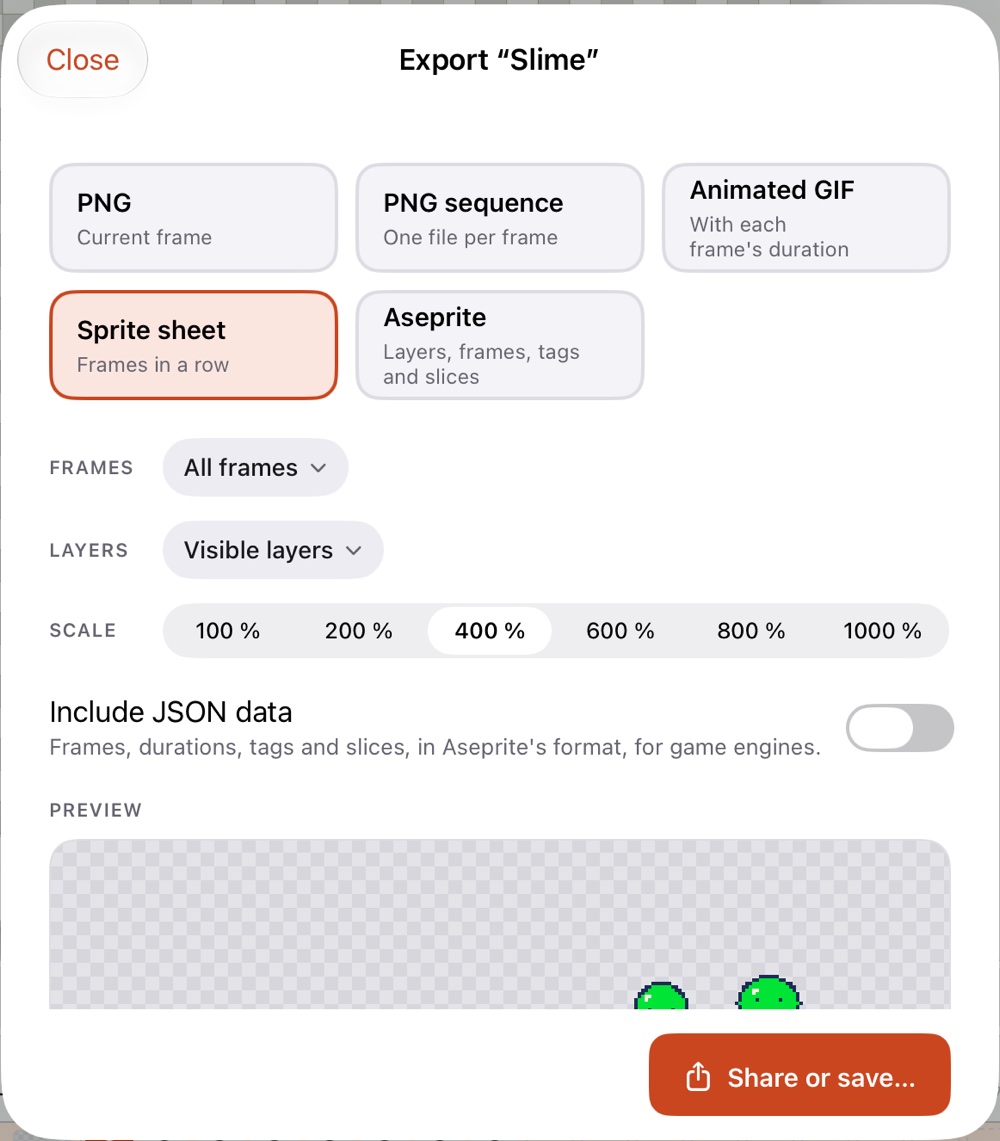
Turn on Include JSON data to export, next to the PNG, a JSON file in Aseprite's format: each frame's position and duration, the tags with their direction, and the slices. Most engines and their Aseprite importers read it as is.