Frames and animation
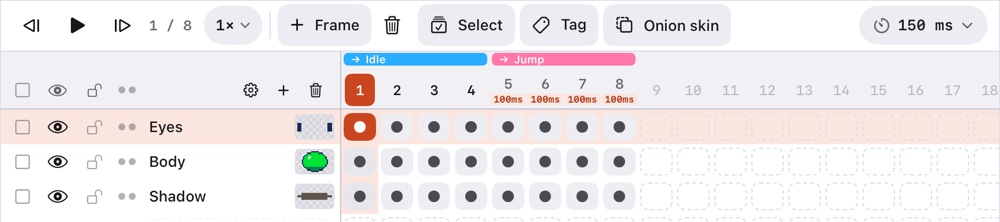
The timeline at the bottom holds the frames (numbered across the top), the tags above them and a cel for every layer and frame.
The timeline's size
Drag the grab bar on its top edge to make it taller or shorter; double tap it to fit every layer. Keep pushing down and it hides behind a small capsule with play, the frame number and a scrubber. Tap its arrow or drag it up to bring the timeline back.
Past the last frame and the last layer, faint projected frames and layers keep the grid going. Tap one with the Apple Pencil to create everything up to it in one step (fingers only scroll over them, so nothing is added by accident).
Frames
- + Frame (⌥N) duplicates the current frame; touch and hold it for an empty one (⌥⇧N).
- The bin deletes the current frame.
- Drag along the frame numbers to scrub through the animation. Touch and hold a number, then drag, to move that frame; its menu has the rest.
- The active frame's column is tinted, like the active layer's row: they cross on the active cel.
- The duration (100 ms ⌄) sets how long the current frame lasts: −/+, presets up to 4 s, or type any value up to 65 535 ms. Frames that last longer or shorter than most show their duration under the number.
,and.(or ← and →) go to the previous and next frame; Home and End to the first and last.
Playback
▶ (↩) plays the current frame's tag, or every frame if it has none. The buttons around it step to the previous and next frame; touch and hold them for the first and last. Next to them, 7 / 10 says which frame you're on. 1× ⌄ sets the speed, from 0.25× to 3×. The side panel's preview has its own play button, so the animation keeps running while you draw.
Tags
A tag is a named, colored range of frames, such as Idle or Jump. Tap Tag (⌥⌘T) to make one over the current frame or the selected frames. Each tag has:
- a direction: forward, reverse, ping-pong or ping-pong reverse;
- a repeat count (0 loops forever).
Tap a tag to edit it. Overlapping tags go in separate bands; focus a band so playback stays inside its tags.
Onion skin
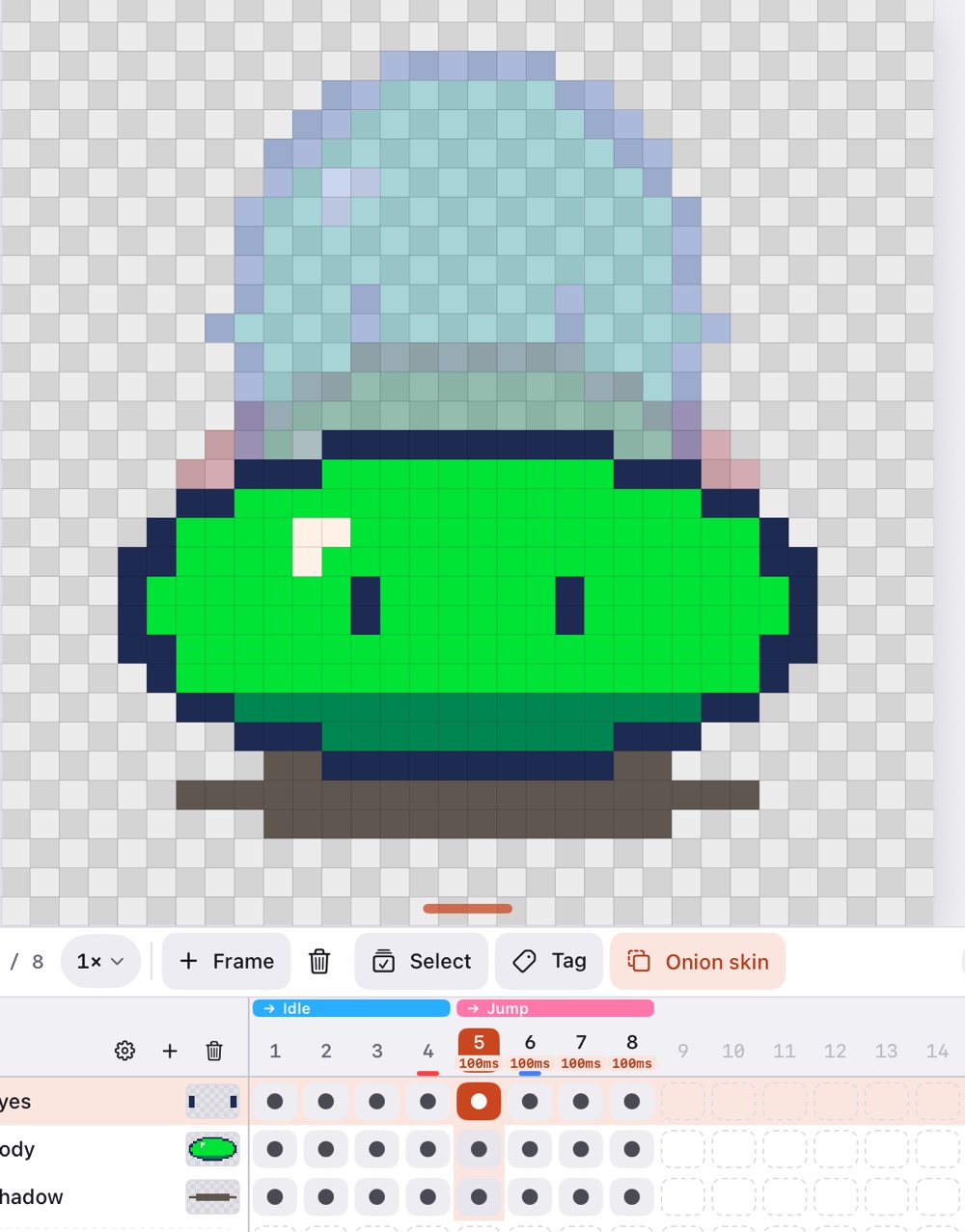
Onion skin shows the frames before and after the current one, faded, so you can follow the motion. Tap it to turn it on; touch and hold it for its settings:
- Previous and next frames: 0 to 3 each way;
- opacity;
- tint: red before, blue after;
- only inside the tag.
While it's on, the frames it shows are marked under their numbers: red before, blue after.
Linked cels
Linked cels share one image: editing one changes all of them. They're drawn as one long pill in the timeline.
- Mark a layer as continuous (its ●● turns into ▬) and new frames link its cel instead of copying it.
- Drag a drawn cel by its dot to another frame or layer to move it there. It replaces what was in that cel.
- Link or unlink cels from a cel's menu or a range selection.
- A cel's menu also sets its z-index: up or down one layer, or reset. Cels drawn higher or lower than their layer show a small +N or −N mark.
A cel's menu also sets its opacity (shared by linked cels).
Selecting a range
Tap Select, then cels, frame numbers or layer names to select a block. With it you can link, unlink, clear, duplicate, reverse or delete it, make a tag over its frames, set the duration of several frames at once, and loop that section.
- What the selection edits: moving, transforming, deleting and filling a selection on the canvas change every cel of the block (a group stands for its layers). The selection tools' All layers and All frames pick such a block for you; see Selection.
- Pick cels one by one: each cel you tap outside the block grows it to take that cel in, even on other layers. Tap a cel inside the block to trim it back.
- Move and copy blocks of cels, frames or layers by dragging them. A switch next to Done chooses between moving and copying. Blocks dropped past the last frame add frames.
- Copy and paste: touch and hold a frame number, a cel or a layer and choose Copy frame, Copy cel, Copy layer or Copy group (layers and groups can also be cut) (or copy a selected block). Then paste from the same menu elsewhere: Paste into this frame (the copied pixels go on top of what the frame already has, layer by layer, so an empty frame gets them as they were), Paste frames after (new frames), Paste cels here or Paste layers above. It works between sprites too.
- Copy and Paste in the timeline bar do the same in one tap. Copy takes the selected block, or else the frame number, layer or cel you tapped last. Paste puts back what you copied: cels on the current cel, layers above the current layer, frames after the current frame (touch and hold Paste to paste into this frame instead).
- Transforms change every selected cel.
- While cels are selected, fills, deletes and transforms on the canvas reach all of them (a fill recolors only what each cel already has). Done clears the selection and leaves only the active cel.